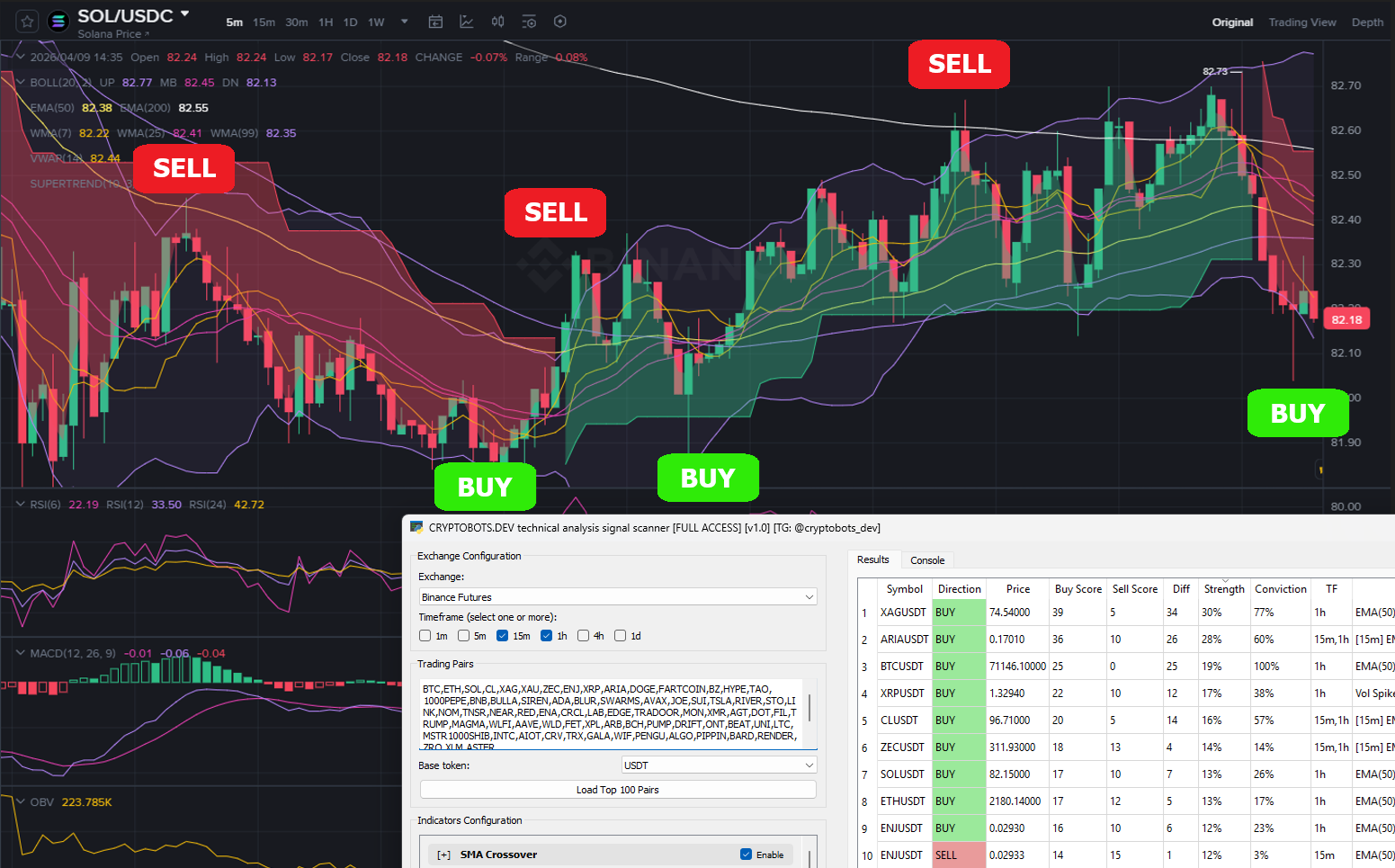
TECHNICAL ANALYSIS SIGNAL SCANNER [STARTERS GUIDE]
This guide walks you through the CryptoBots Signal Scanner from installation to your first results — every field, every button, every tab explained. If you haven’t downloaded the scanner yet, grab it here first:
DOWNLOAD TA SIGNAL SCANNER: https://cryptobots.dev/scripts/technical-analysis-signal-scanner-free/
TECHNICAL ANALYSIS INDICATOR GUIDE: https://cryptobots.dev/articles/technical-indicators-guide
What is the Signal Scanner?
The Cryptobots Technical Analysis Signal Scanner is a desktop application that scans cryptocurrency markets using up to 27 technical indicators simultaneously. You give it a list of trading pairs and a timeframe, it fetches live candle data from the exchange, runs every indicator you have enabled, and produces a ranked list of the strongest BUY and SELL signals — sorted by Strength% so the best setups appear at the top.
No charting required. No manual indicator checking. The scanner does the screening — you do the trading.
Installation
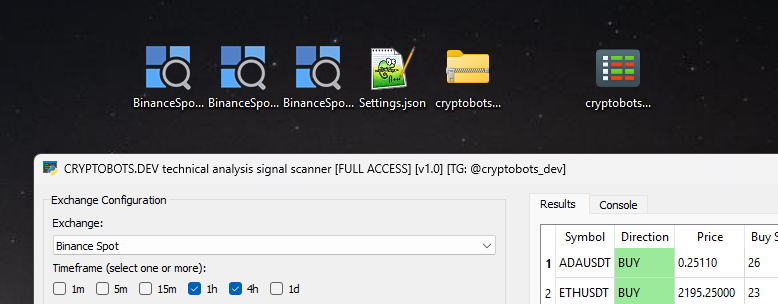
- Download the .zip from the link above
- Extract to any folder on your Windows PC
- Double-click
cryptobots_signal_scanner_v1.0.exeto launch - No installation needed — everything is bundled
Free Trial vs Full Access
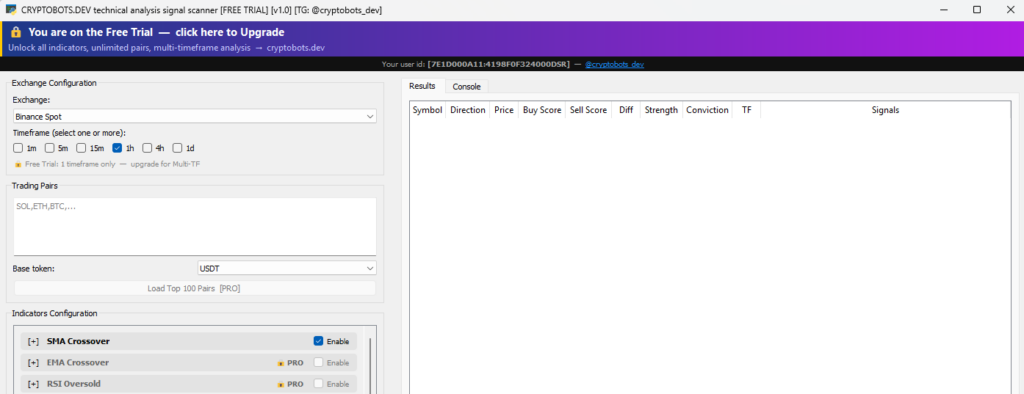
When you first launch the app, you are on the Free Trial plan. The app works immediately with no registration required — the free trial is not time-limited, its function limited.
What the Free Trial includes:
- 3 indicators (SMA Crossover, BB Lower Touch, BB Upper Touch)
- 1 trading pair per scan
- 1 timeframe at a time
- CSV export of results
- All 4 exchanges (Binance Spot, Binance Futures, Bybit, Coinbase)
What Full Access adds:
- All 27 indicators with full configuration
- Unlimited pairs per scan
- Multi-timeframe scanning (select 1m, 5m, 15m, 1h, 4h, 1d simultaneously)
- Load Top 100 pairs automatically from the exchange
- Save and load your indicator settings between sessions
How to Activate Full Access
- Open the app — at the top you will see a dark bar showing your User ID in the format
[XXXXXXXX:XXXXXXXXXXXXXXXX] - Copy your User ID — click and drag to select the text in brackets, then Ctrl+C to copy
- Contact us on Telegram: @cryptobots_dev — send your User ID to any admin for activation
- Use the full access with no limits
Your license is tied to your machine’s hardware — it works on your PC automatically without any login.
App Layout Overview
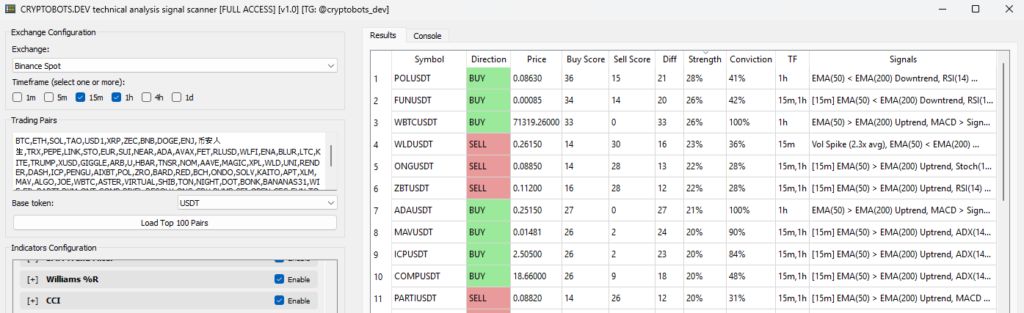
The app is split into two panels side by side:
- Left panel — configuration: exchange, timeframe, pairs, indicators, and scan controls
- Right panel — results: the signal table and console log
A horizontal splitter between them can be dragged left or right to resize. The right panel is wider by default (2:1 ratio).
Left Panel — Configuration
Exchange Configuration (top section)
Exchange dropdown
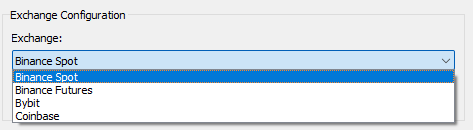
Choose which exchange to fetch candle data from: Binance Spot, Binance Futures, Bybit, or Coinbase. No API keys required — the scanner uses public endpoints only.
- Binance Spot — all spot pairs such as BTC, ETH, SOL
- Binance Futures — USDT-margined perpetual contracts
- Bybit — Bybit spot pairs
- Coinbase — Coinbase Advanced Trade pairs
Timeframe checkboxes

Select one or more of: 1m, 5m, 15m, 1h, 4h, 1d
- Single timeframe: Standard scan — each pair is scanned once on the selected timeframe
- Multi-timeframe (Full Access only): Select multiple timeframes and the scanner runs all of them for every pair, then merges the results. A pair that generates a BUY signal on 1h and 4h and 1d appears as a single row scored by average values with the TF column showing
1h+4h+1d. These are ranked to the top automatically.
Free Trial users: selecting a second checkbox unchecks the previous one automatically.
Trading Pairs
Pairs input box
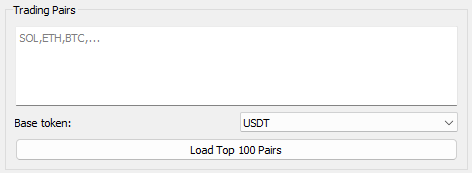
Type the token names you want to scan, one per line or comma-separated. Use the base token name only, — no need to include USDT or the quote currency: The app automatically appends the selected base token (e.g. SOL becomes SOLUSDT).
Base token selector

Sets the quote currency appended to every pair: USDT, USDC, BTC, ETH, or BNB. Default is USDT which covers the vast majority of liquid pairs on all exchanges.
Load Top 100 Pairs button (Full Access only)

One click fetches the top 100 trading pairs by 24h volume directly from the selected exchange and populates the pairs input automatically. Stablecoins are filtered out automatically (USDC, BUSD, TUSD, DAI, FDUSD, etc.) so you only get real trading assets.
Free Trial users see this button greyed out with a [PRO] label.
Indicators Configuration
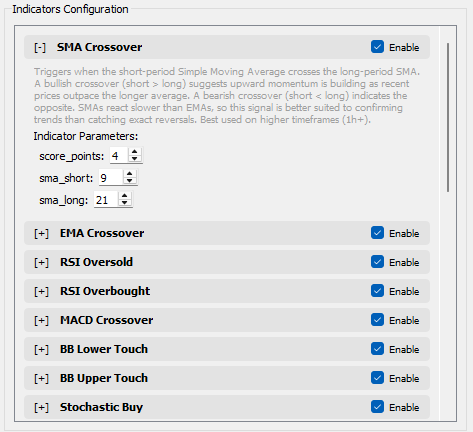
A scrollable list of all 27 indicators. Each indicator is a collapsible row. Click the indicator name to expand it and see:
- Enable/disable checkbox — turn the indicator on or off for this scan
- Weight spinner — how many score points the indicator contributes when it fires (1–20)
- Parameter spinners — indicator-specific settings (e.g. RSI window, oversold level, EMA periods)
- Description — a full explanation of what the indicator does and when it fires, shown as a tooltip or in the expanded view
Free Trial users: all indicators except SMA Crossover, BB Lower Touch, and BB Upper Touch are shown with a lock icon and cannot be enabled. The locked indicators contribute zero to scores.
For a full explanation of every indicator, see the Indicators Guide
Scan Actions (bottom of left panel)
Load or Save Settings button (Full Access only)

Saves your entire configuration — selected exchange, timeframes, enabled indicators, weights, and all parameters — to a JSON file on disk. Load it back any time to restore your setup instantly. Useful for maintaining multiple configurations.
Free Trial users see this button but it is inactive.
Start Scan button (large green button)

Launches the scan. The button turns red and relabels to Stop Scan while the scan is running. Click it again at any time to stop — the scanner finishes the current symbol, then stops gracefully and displays whatever results it has collected so far.
What happens when you click Start Scan:
- The app validates that at least one pair and one timeframe are selected
- A progress bar appears in the Results tab
- The scanner fetches 500 candles per pair per timeframe from the exchange (with a 100ms delay between requests to respect rate limits)
- All enabled indicators are computed for each pair
- Results are merged (for multi-TF scans) and ranked
- The Results table populates and sorts by Strength% descending
- The top 3 signals are also printed to the terminal window for quick reference
Export Results (CSV) button

Saves the current results table to a .csv file. A file save dialog opens with a default filename in the format Exchange-Timeframe-YYYYMMDD_HHMMSS.csv. The CSV includes all columns: Symbol, Direction, Price, Buy Score, Sell Score, Diff, Strength%, Conviction%, TF, and Signals.
Right Panel — Results
Results Tab
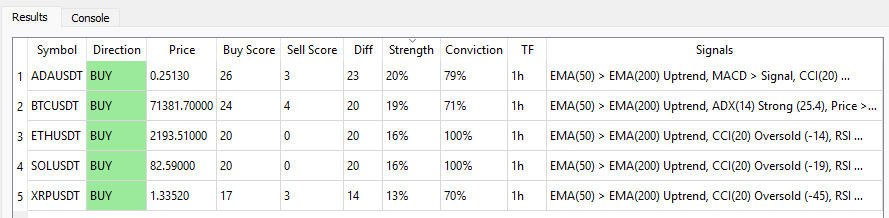
The main signals table with 10 columns:
| Column | What it shows |
|---|---|
| Symbol | Trading pair (e.g. SOLUSDT) |
| Direction | BUY (green) or SELL (red) |
| Price | Last closing price at time of scan |
| Buy Score | Total score points from all bullish indicators that fired |
| Sell Score | Total score points from all bearish indicators that fired |
| Diff | Absolute difference between Buy and Sell score |
| Strength% | % of available firepower on the winning side that actually fired |
| Conviction% | How cleanly one side won — high = decisive, low = both sides lit up |
| TF | Which timeframes confirmed this signal (e.g. 1h, or 1h+4h+1d for multi-TF) |
| Signals | List of every indicator that fired |
Sorting: Click any column header to sort by that column. Default sort is Strength% descending. Multi-TF confirmed rows (where TF shows 1h+4h or similar) are ranked to the top even before Strength, and are highlighted in gold.
Hover over any column header to see a tooltip explaining exactly what that column measures.

Progress bar: Appears below the table while a scan is running, showing % complete — current pair (step/total).
Console Tab
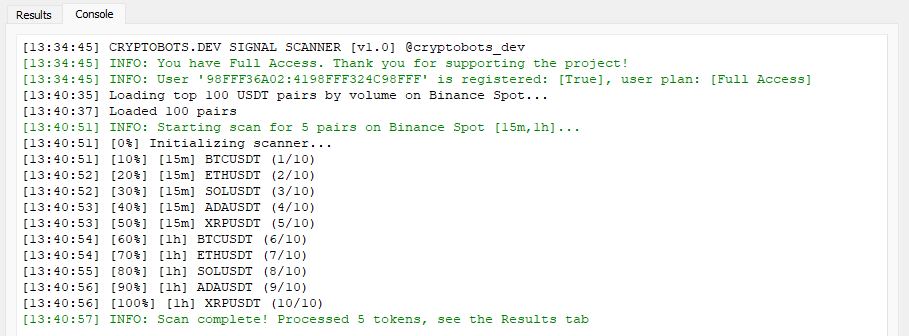
A timestamped log of everything the scanner does. Useful for:
- Confirming which pairs were processed and which were skipped
- Seeing rate-limit warnings (429 errors) if the exchange throttled a request
- Viewing your license and plan status on startup
- Checking for version update notifications
- Diagnosing any connection or data errors
Every entry is prefixed with a timestamp [HH:MM:SS]. Errors appear as ERROR:, warnings as WARNING:, and informational entries as INFO:.
Status Bar (bottom of window)

A slim bar at the very bottom of the app shows the current status with a live timestamp. Updates automatically at every key event:
Ready [2026-04-09 14:32:01] [Full Access]— idleScanning 50 pairs on Binance Spot [1h+4h]...— scan in progress47% ETHUSDT (24/50)— progress update per pair- Stopping scan — finishing current symbol… — stop requested
Scan complete — 18 signals found— finished
Free Trial Banner (Free users only)
If you are on the Free Trial, a pulsing gradient banner appears at the top of the app:

Clicking anywhere on the banner opens cryptobots.dev in your browser.
Below the banner is a smaller bar showing your user id for license activation.
The User ID text is selectable and copyable with your mouse — click and drag to highlight it, then Ctrl+C.
Your First Scan — Step by Step
- Launch
cryptobots_signal_scanner_v1.0.exe - Select exchange — start with
Binance Spot(most pairs, most liquid) - Select timeframe — check
1hfor a good balance of signal quality and frequency - Enter some pairs — type
BTC, ETH, SOL, BNB, DOGEin the pairs box - Set base token — leave as
USDT - Check indicators — leave defaults for your first scan (Free Trial has 3 enabled, Full Access has all 27)
- Click Start Scan — watch the progress bar in the Results tab
- Read the results — look for rows where Strength% is high (70%+) and Conviction% is high (75%+)
- Check the Signals column — hover or read which specific indicators fired on your top result
- Export if needed — click Export Results (CSV) to save if needed
Reading Results — What to Look For

High Strength + High Conviction (e.g. 85% / 90%) — the strongest, cleanest signal. Multiple indicators agreed strongly on one direction.
High Strength + Low Conviction (e.g. 80% / 25%) — many indicators fired but both buy and sell sides lit up. This often appears in ranging/choppy markets. Treat with caution.
Low Strength + High Conviction (e.g. 20% / 95%) — very few indicators fired, but all of them agreed on the same direction. A weak but clean signal. Worth watching if it’s in a clear trend context.
Multi-TF rows (gold highlight) — a signal confirmed on multiple timeframes simultaneously. These are the highest-quality setups the scanner produces.
Signals column — always read this. If a BUY signal was generated by RSI Oversold, BB Lower Touch, Stochastic Buy (three mean-reversion indicators) that is very different from EMA Crossover, MACD Crossover, ADX Strong Trend (three trend-following indicators). Knowing why helps you decide whether to act.
Tips & Best Practices
The scanner is a screener, not an entry signal — use it to build a shortlist, then apply your own price action analysis and risk management before trading
Run multi-timeframe scans (Full Access) — select 1h + 4h together. Any pair appearing in both with the same direction is a high-quality setup; use the single-TF results for timing
Use Load Top 100 (Full Access) on your chosen exchange to discover setups you wouldn’t have thought to look for manually
Don’t fight the ATR Filter — if the console says a pair was skipped due to low ATR, that pair is too quiet to trade reliably right now
The Console tab is your friend — if a pair you expected to appear isn’t in results, the console will show exactly why (error, skipped, or no signal above threshold)
Save your settings (Full Access) — once you’ve tuned your indicator weights and parameters, save to a JSON file so you don’t have to reconfigure after a restart
/// To contact us on Telegram use the link below: